



General Overview
Explanation of Android Enterprise
Requirements and Installation
Requirements
General Settings
Account Overview
Account Information
Global Configuration
Privacy
Role Based Access
Apple Configuration
Android Configuration
Windows Configuration
ContentBox
LDAP Configuration
App Management
In-House App DB
App Settings
App Store Settings
Remote Control
Sim Card Management
Subscription Management
General Audit Log
Mobile Management
iOS Configuration
General
Device Log (only on device level)
Asset Management (only on device level)
Asset Management (only on device level)
Security Management
Anti Theft (only on device level)
Security Configuration
End of Life (only on device level)
Restriction Settings
BYOD
Connection Management
Web Management
App Management
Android Enterprise – Fully Managed Device Configuration
General
Device Log (only on device level)
Device Settings
Asset Management (only on device level)
Security Management
Anti Theft (only on device level)
Security Configuration
End of Life (only on device level)
Restriction Settings
Connection Management
PIM Management
App Management
Enterprise App Manager
Restrictions & Settings
Enterprise App Store
Enterprise Play Store
Kiosk Mode & Launcher
Remote Control
Content Management
Additional API
Samsung KNOX
Android Enterprise - Fully Managed Device with-Work Profile (COPE)
Android Enterprise – Container Configuration
General
Asset Management (only on device level)
Security Management
Anti Theft (only on device level)
Security Configuration
End of Life (only on device level)
Restriction Settings
Connection Management
PIM Management
App Management
Enterprise App Manager
Restrictions & Settings
Enterprise App Store
Enterprise Play Store
Content Management
Android Configuration
General
Device Log (only on device level)
Device Settings
Asset Management (only on device level)
Security Management
Anti Theft (only on device level)
Security Configuration
End of Life (only on device level)
Restriction Settings
BYOD Container
Connection Management
PIM Management
App Management
Enterprise App Manager
Restrictions & Settings
Kiosk Mode & Launcher
Remote Control
Content Management
Configuration Windows 10 PC
General
Device Log (only on device level)
Asset Management (only on device level)
Security Management
Anti Theft (only on device level)
Security Configuration
Restriction Settings
BitLocker
Certificate Management
Connection Management
PIM Management
App Management
Enterprise App Manager
MacOS Configuration
General
Asset Management (only on device level)
Update Management (only on device level)
Security Management
Anti Theft
Security Configuration
Restriction Settings
Connection Management
PIM Management
Dashboard & Reporting
Multitenant Management
Additional views
Zero-Touch
With Zero-Touch you can easily enroll your devices without the need of touching them or configure anything on the device itself. You just have to turn it on, proceed through the configuration as normal and the device will receive all information on how to setup and connect to the MDM completely automatically.
To use Zero-Touch you have to buy your devices from a Reseller which supports Zero-Touch. The same Reseller is also creating an Account for you in the Zero-Touch Portal. Contact your Reseller to get more info about the procedure or if you have problems when accessing the Zero-Touch Portal.
Click on “Start Setup” to start the setup. You will be redirected to a login page where you have to select your Google Account which has access to the Zero-Touch Portal.
NOTE: It is possible to select ANY Account. So get sure to select the correct Account in this step. If you do not see your devices/configurations, you high likely used the wrong Account.
After completing the login, it will look like this:
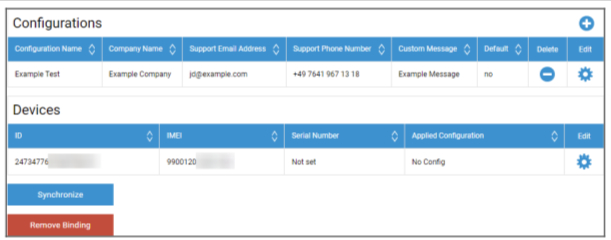
Click on the “+” to add a Configuration and fill out the fields as presented on the screen. If you enable the Configuration as default Configuration, it will be assigned to the new devices automatically. Creating or setting a default configuration does not assign it to already existing devices.
If a device has no Configuration assigned, it will setup as a normal device and not connect to the MDM. Therefore get sure that your devices have a Configuration assigned.
After you connected your Account, your devices are visible and you have a Configuration assigned to them, you can start setting up the devices.
You can add the devices to the Auto Enrollment List so they will get enrolled into a specified group or user automatically. If you did not configure anything in the Auto Enrollment list, devices will be enrolled into the Pool.