



General Overview
Explanation of Android Enterprise
Requirements and Installation
Requirements
General Settings
Account Overview
Account Information
Global Configuration
Privacy
Role Based Access
Apple Configuration
Android Configuration
Windows Configuration
ContentBox
LDAP Configuration
App Management
In-House App DB
App Settings
App Store Settings
Remote Control
Sim Card Management
Subscription Management
General Audit Log
Mobile Management
iOS Configuration
General
Device Log (only on device level)
Asset Management (only on device level)
Asset Management (only on device level)
Security Management
Anti Theft (only on device level)
Security Configuration
End of Life (only on device level)
Restriction Settings
BYOD
Connection Management
Web Management
App Management
Android Enterprise – Fully Managed Device Configuration
General
Device Log (only on device level)
Device Settings
Asset Management (only on device level)
Security Management
Anti Theft (only on device level)
Security Configuration
End of Life (only on device level)
Restriction Settings
Connection Management
PIM Management
App Management
Enterprise App Manager
Restrictions & Settings
Enterprise App Store
Enterprise Play Store
Kiosk Mode & Launcher
Remote Control
Content Management
Additional API
Samsung KNOX
Android Enterprise - Fully Managed Device with-Work Profile (COPE)
Android Enterprise – Container Configuration
General
Asset Management (only on device level)
Security Management
Anti Theft (only on device level)
Security Configuration
End of Life (only on device level)
Restriction Settings
Connection Management
PIM Management
App Management
Enterprise App Manager
Restrictions & Settings
Enterprise App Store
Enterprise Play Store
Content Management
Android Configuration
General
Device Log (only on device level)
Device Settings
Asset Management (only on device level)
Security Management
Anti Theft (only on device level)
Security Configuration
End of Life (only on device level)
Restriction Settings
BYOD Container
Connection Management
PIM Management
App Management
Enterprise App Manager
Restrictions & Settings
Kiosk Mode & Launcher
Remote Control
Content Management
Configuration Windows 10 PC
General
Device Log (only on device level)
Asset Management (only on device level)
Security Management
Anti Theft (only on device level)
Security Configuration
Restriction Settings
BitLocker
Certificate Management
Connection Management
PIM Management
App Management
Enterprise App Manager
MacOS Configuration
General
Asset Management (only on device level)
Update Management (only on device level)
Security Management
Anti Theft
Security Configuration
Restriction Settings
Connection Management
PIM Management
Dashboard & Reporting
Multitenant Management
Additional views
Remote Control your device
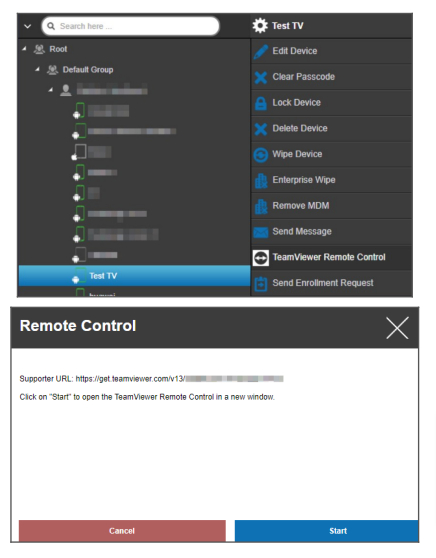
To remote control your device, select the device, click on the wheel and choose “TeamViewer Remote Control”
If there is already an active session, you can either use the old session or create a new one.
Confirm that you want to create a new TeamViewer Session.
After a few seconds you will get a link for your TeamViewer Session. You can click on “Start” to open this link in a new window.
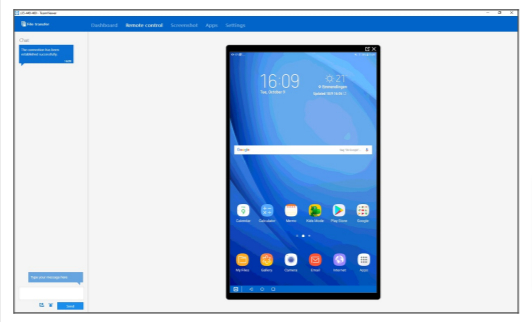
This link will open your installed TeamViewer and connect you to your device.
Now you have to confirm the connection on the device itself to remote control it.
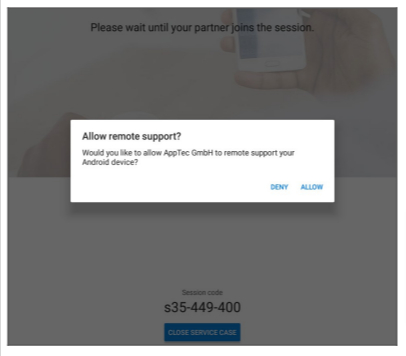
If you are using iOS you will get a message in the AppTec360 MDM Client. With that link the device will join the remote session. Depending on the notification settings of the device it is possible that you will not receive a notification and have to open the AppTec360 MDM Client manually.
On some Android devices (e.g. Samsung) it is required to install an additional app as addon. The TeamViewer app on the device will inform you about that, if this is necessary on your device.