



General Overview
Explanation of Android Enterprise
Requirements and Installation
Requirements
General Settings
Account Overview
Account Information
Global Configuration
Privacy
Role Based Access
Apple Configuration
Android Configuration
Windows Configuration
ContentBox
LDAP Configuration
App Management
In-House App DB
App Settings
App Store Settings
Remote Control
Sim Card Management
Subscription Management
General Audit Log
Mobile Management
iOS Configuration
General
Device Log (only on device level)
Asset Management (only on device level)
Asset Management (only on device level)
Security Management
Anti Theft (only on device level)
Security Configuration
End of Life (only on device level)
Restriction Settings
BYOD
Connection Management
Web Management
App Management
Android Enterprise – Fully Managed Device Configuration
General
Device Log (only on device level)
Device Settings
Asset Management (only on device level)
Security Management
Anti Theft (only on device level)
Security Configuration
End of Life (only on device level)
Restriction Settings
Connection Management
PIM Management
App Management
Enterprise App Manager
Restrictions & Settings
Enterprise App Store
Enterprise Play Store
Kiosk Mode & Launcher
Remote Control
Content Management
Additional API
Samsung KNOX
Android Enterprise - Fully Managed Device with-Work Profile (COPE)
Android Enterprise – Container Configuration
General
Asset Management (only on device level)
Security Management
Anti Theft (only on device level)
Security Configuration
End of Life (only on device level)
Restriction Settings
Connection Management
PIM Management
App Management
Enterprise App Manager
Restrictions & Settings
Enterprise App Store
Enterprise Play Store
Content Management
Android Configuration
General
Device Log (only on device level)
Device Settings
Asset Management (only on device level)
Security Management
Anti Theft (only on device level)
Security Configuration
End of Life (only on device level)
Restriction Settings
BYOD Container
Connection Management
PIM Management
App Management
Enterprise App Manager
Restrictions & Settings
Kiosk Mode & Launcher
Remote Control
Content Management
Configuration Windows 10 PC
General
Device Log (only on device level)
Asset Management (only on device level)
Security Management
Anti Theft (only on device level)
Security Configuration
Restriction Settings
BitLocker
Certificate Management
Connection Management
PIM Management
App Management
Enterprise App Manager
MacOS Configuration
General
Asset Management (only on device level)
Update Management (only on device level)
Security Management
Anti Theft
Security Configuration
Restriction Settings
Connection Management
PIM Management
Dashboard & Reporting
Multitenant Management
Additional views
Add and enroll a Device
Here you can select a device for the selected use.
Alternatively you can enroll devices into a group directly. To do so, click on the group, click on the wheel and select “Add and enroll a Device”.
You should see the following overview:
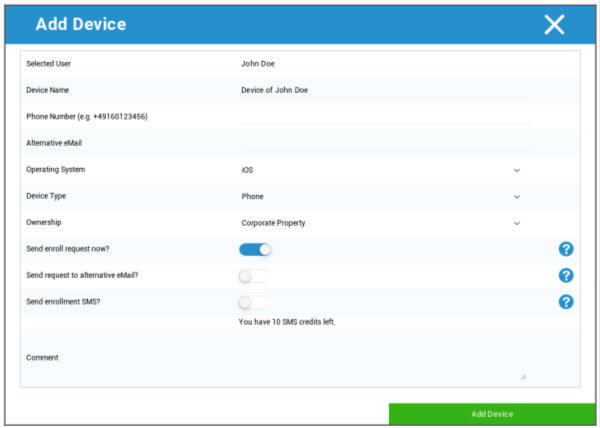
Depending on what sort of device you want to enroll, you must perform the following configurations:
Selected User | Selected user (will be filled in automatically) |
Device Name | Will be filled in automatically (device for “user’s name“) – can, however, be changed |
Phone Number | Telephone number, will be filled in automatically (as long as it was provided by the user) – here, however, it can be added or changed |
Alternative eMail | Alternate email, will be filled in automatically (as long as it was provided by the user) – here, however, it can be added or changed |
Device Owner | Corporate Property = corporate device Employee Property = BYOD device |
Choose operation System | Here, you can choose between the following operating systems:
|
Send enroll request? | The email is sent immediately to the main email address and the user is prompted to connect their device |
Send request to alternative eMail? | Send the email additionally or exclusively (in case “Send enroll request?“ was deactivated) to the alternate email address (email is different from the “normal“ enroll Request email) |
Send enrollment SMS? | Send an enrollment request via SMS (the “Phone Number“ must be entered) |
After the Enrollment Request has been sent, the device will be displayed (marked red) right away.
As soon as the device has been connected successfully, the device will be marked green shortly thereafter and is thereby ready to receive restrictions, apps, etc.